Saturday, 8 March 2014

Windows 7 auto log in.


Well after spending a lot of time on WiFi Pineapples shall we head back to Windows 7.

May of you may not remember computers pre Windows XP, we never had to log in to a system, it used to just start up ready for us.

My desktop doesn't travel around, any I am the only person with access, so why should I have to type in my password to get access? Don't get me wrong my laptop does travel and as a result has a password and full drive encryption.

Now this is the same case with my mother, but I don't want her having admin access to her computer, that would only make more work for me in the long run. As this is the second time I have had to reinstall a full OS for her.
 The default log in account can be a user or an admin, bear in mind if the user attempts to access and admin feature they will be prompted for the admin's password (installed team viewer for my Mum).

Less of my life and lets get into this nice quick tip.

Open the run command by pressing GUI+r.

type in "control userpasswords2" and yes without the quotes.

Then click Apply.

At this point you will be prompted for your password.

Now after the next boot you will be delivered to your desktop.

Don't forget what your password is, you may still want to lock your computer when friends come around or if you have set your computer to prompt for a password after recovering from screensaver.


So I think the next one will have to be how to reset your password if you forget it.


WiFi Pineapple SSL Strip

SSL is used for secured traffic on websites, while it was first used on banking and shopping websites, it is now used by twitter, facebook and even google.

After the firefox extension Firesheep received mainstream media coverage pretty much all social media sites defaulted to HTTPS / SLL, previously most of these website offered HTTPS as an option within the security settings but most users did not know how to enable this or how important it was.
Now SSL would protect you from a man in the middle attack like firesheep but SSL Strip is another MITM attack.

Now the first thing you should be doing is updating to the latest WiFi Pineapple firmware version 1.1.0.
Flashing is very easy just open the WiFi Pineapple MK5 large tile and check for upgrades, flashing takes a few minutes so you may have to put some time aside for this.

Getting started is easy as with all others just click start in the small tile - you can look at the log file in the small tile but I would suggest opening up the large tile.
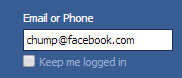
I attempted to access facebook I had a few problems getting the infusion to log any data, as I was using Chrome that I was logged into was forcing me to use HTTPS as but after logging out and manually typing in www.facebook.com.


I will be logging into facebook with the accoutn chump@facbook.com and the password "lamepassword"


Even though I prefer using the large tile interface, the it turns out the small tile was best for demonstrating on here.
As you can see this has reported a username and password.

You do have to pick it out but 3rd line from the bottom you can see
"&email=chump%40facebook.com"
"&pass=lamepassword"

The reason that the @ symbol is not displayed is because of Percent-encoding or URL encoding.
I won't be covering this in depth basically some characters are unsupported and need to be re-encoded. If you have ever cut and pasted a URL and accidentally included a space you would see that space replaced with %20, for further reading please see the Wikipedia page here and I also found a useful table here.

Remember to keep safe and only exploit systems you have the correct authorisation for.

Wednesday, 19 February 2014

WiFi Pineapple Random Roll

WiFi Pineapple Random Roll

I'm not too sure if anyone out there is actually following this blog or not but for the 1 or 2 of you out there I have been away for a month or so after getting sick, once I got better I had lost my motivation - this has now returned.

So lets stat with Random Roll, this is a Pineapple Bar Infusion, free space required is 18954kb - so you will only be able to install this on to your SD card. Random Roll installs 7 "rolls" on to your system. including Nyan cat, Peanut Butter Jelly Time and Circus  Afro.


After installation you can decided to run 1 or a multiple of the rolls on a random setting, don't forget to start the service - I spent 15 minutes head scratching with this once.

Without any further configuration any user on the Pineapples network will only be rolled if the attempt to access 172.16.42.1.

After configuring DNS Spoof you will be able to direct certain websites - or if you would prefer all websites to 172.16.42.1 to roll everyone.

Now as I said in my last post if you misuse these tools you can land yourself in legal trouble, only use these tools when you have permission.

My next post will be on SSL Strip with the Pineapple and hopefully by that time I would have sorted out getting my youtube account up and running the first 2 videos will be on Karma, Random Roll and SSL Strip. Any suggestions or requests please leave a comment or PM me.

Wi-Fi Pineapple DNS Spoof

DNSSpoof

Introduction

DNSSpoof allows you Pineapple to reroute requests for websites to a particular IP address.
So dumbing it down again, when you type a website name into your browser DNS is used to resolve the IP of the webserver that is hosting the website you are looking for. One example would be using command prompt to ping a website.


In a windows environment the first place that will be checked is
C:\Windows\System32\drivers\etc\hosts
 If you are working within an enterprise environment you can edit this file to resolve a simple name for network devices that do not get published in DNS, like switches.


Editing the host file as shown will redirect requests for google.com

A real world application would be if I had a switch n my network call "switch1" with the IP address of 10.0.0.3 I could edit my host file so that I do not have to keep track of the IP address, handy if you have many switches on an enterprise network.


So DNSSpoof will redirect any requests for a website to an IP that you decide.
 

Operation

DNSSpoof is available when you initially set up your Pineapple, so no infusions to install for this application. To state the obvious you first have to enable DNSSpoof.
You can now redirect DNS requests to the pineapple or anywhere else you wish by editing the
if you replace a website name with an asterisk (*) all DNS requests will be forwarded to your chosen IP address.
 
 
As always stay safe remember that this  is not illegal to do any of this on your own equipment or equipment that you have the permission to work on. In the current climate even what we may view as minor mischief can be prosecuted. Please look forward to my next post that will be on the Random Roll infusion.

Saturday, 11 January 2014

WiFi Pineapple and Karma.


Well it would appear that this is the 2nd time I am writing this blog, as I was a complete idiot and somehow managed to delete the post while it was still in draft I could not find the data, but it does mean that I get to watch some more Elementary.
Let's look at the WiFi Pineapple, a security auditing tool that exploits the inherent security flaws in unencrypted WiFi security.
The WiFi Pineapple is produced by Hak5 and sold in the HakShop.
The WiFi Pineapple works as a router, this is not to be confused with the Netgear or Linksys router in your house, the Pineapple has two wireless radios, one Ethernet port and one USB.
So I received my WiFi Pineapple on Friday and have been in experiment mode ever since.
The Pineapple arrives completely blank but the latest firmware is included on a microSD card,  the whole process is automated and provided you follow the guide that is included or watch the videos on Hak5 you should have no issues.
Applications that run on the Pineapple are called "Infusions" some are included and many are online in the Pineapple Bar.
The particular application I am looking at talking about is Karma.
I won't be going in depth on the theory as this has been covered many times on Hak5.
When your laptop or phone come online they send out probe requests looking for networks that they have attached to previously. This list can be found on a Windows PC by clicking on "Manage Wireless Networks" link within the Network and Sharing Center. 
 The best way to access Karma is through the Pineapple web interface.


Now let's state the obvious, you click on "Start" Karma will start. Clicking "Enable" will not start Karma but will automatically start the next time the Pineapple reboots, handy if you don't want to get your laptop out and log into the Pineapple. Clicking on "Karma" will open the Karma interface, within the interface there are three pages; Karma Intelligence Report, Karma Log, Karma Configuration.
 
Karma Intelligence displays the MAC address, assigned IP address, Hostname and the assumed SSID. I have edited the hostnames and MAC addresses to protect myself and the stupid person that connected while I was taking screenshots (first time I managed to pick anyone else up).


Karma Log holds information on all probe requests received and all clients that have connected.

 
An  finally Karma Configuration is where you can set the broadcast SSID of the Pineapple, Client Blacklisting where you can set clients that the Pineapple will not respond to, and SSID Black/White Listings where you can configure what SSID's the Pineapple responds as.
 
So in conclusion the WiFi Pineapple can make you a man in the middle, you can be the one that people connect to for internet access. And how can you protect yourself from this kind of attack, well don't connect to any unsecured networks, if you do don't all that network to connect automatically. Always make sure you know what you are connecting to.

Friday, 10 January 2014

New arrivals.

I have received my USB Rubber Ducky and WiFi Pineapple today.
Thanks Hak5 for the holiday sales.


The next few instalments will be featuring the WiFi Pineapple so please keep an eye out over the next few weeks.

Thursday, 9 January 2014

Begining

Well where to start?

 I’m Mat the Grinch and have been working in the IT/Comms industry for 13 years now. Being that I am at the grand old age of 30 I have not even attempted to side step into another industry by now I am probably in here for life, not that that is a bad thing.

So I currently work as an IT contractor, my current position is network monitoring which is cool apart from the fact that every day is 12 hours long, when you get to day 4 it is a long day. But realistically I probably spend around 15 hours a day at a computer, as a result I have quite a few IT tips and tricks that I am going to try to share with you.


So this week we will be making a custom login screen for Windows 7, yes Windows 7 not 8. I think you know why.


Now the tricky bit navigate to this area of the registry using regedit.
Computer\HKEY_LOCAL_MACHINE\SOFTWARE\Microsoft\Windows\CurrentVersion\Authentication\LogonUI\Background
Change the value of OEMBackground to 1.


So first we need a picture that is not larger than 256kb.
Now name the file backgroundDefault.jpg
 Place the JPEG into the folder “C:\Windows\System32\oobe\info\backgrounds” if the backgrounds folder is not there just create it.
 There is no need to reboot just press windows + L to lock and you now have a customised log on screen.

Well as I am sitting here at 0900 in the morning after working a 12 hour night shift I may as well tell you what the plan is for my next post.
Fun with a WiFi Pineapple - I am actually staying up this morning awaiting my delivery of a Mark V pineapple so you can expect some Pinappley goodness pretty soon.

If you would like to find out more about the WiFi Pineapple please check out Hak5 on youtube.

That's all for today any feedback is always welcome.